
 Anuradha
 14 Nov 2025
 LinkedIn
Google Search Console is a free web service tool offered by Google that helps website owners, marketers, and SEO professionals monitor their website’s presence in Google Search results.
It provides insights into:
How your website appears in search results
Which keywords drive traffic to your site
How often your pages are shown or clicked
Any issues Google encounters while crawling your website
In short, Google Search Console is like your website’s health and performance report for Google Search.
Google Search Console is one of the most powerful and free tools from Google that helps you understand how your website performs in search results. Whether you’re a blogger, digital marketer, or business owner, using Google Search Console gives you valuable insights that help improve your website’s visibility and SEO performance.
Here are the key reasons why you should use Google Search Console:
Monitor Search Performance - Google Search Console shows how your pages, post of website perform in Google Search like clicks, impressions, and average position. You can easily identify which keywords bring the most traffic and which pages need improvement.
Fix Indexing Issues - Sometimes, certain pages on your website might not appear in Google’s search results. Search Console helps you detect and fix indexing problems so that all important pages are properly visible to search engines.
Submit Sitemaps - Google Search Console allows you to submit your sitemap XML, making it easier for Google to crawl and index your website faster and more accurately.
Identify Mobile Usability Issues - The tool helps identify mobile usability issues, ensuring your website provides a smooth user experience on all devices.
Track Backlinks & Internal Links - You can see which websites link to your pages. It help you to understand your backlink profile and improve your link-building strategy.
Security & Manual Actions Alerts - If your site is hacked or violates Google’s guidelines, Search Console alerts you instantly. This helps you take quick action to protect your website and maintain ranking stability.
Disavow Tool - Google Search Console gives you access to the Disavow Tool, which allows you to tell Google to ignore specific spammy or low-quality backlinks that might harm your site’s ranking. This tool is especially useful when you have unwanted or “toxic” backlinks from irrelevant or suspicious websites — helping you protect your site’s SEO health.
Creating a Google Search Console (GSC) account is a simple but essential step to start monitoring your website’s performance in Google Search. Whether you’re launching a new website or already running one, setting up your Search Console account helps you understand how Google views your site and identify areas to improve SEO.
Follow these easy steps to create your account:
Step 1: Go to the Google Search Console Website
Open your web browser and visit the official Google Search Console website. Click on start now button given below, If you’re not already signed in, log in using your Google account (Gmail).
Tip: Always use the same Gmail ID that you use for your website’s Google Analytics or other Google services — it helps link everything easily.
After logging into your Google Search Console account, the next step is to add your website property in Google Search Console so that It can start tracking its performance.
A property represents a website that you want to track in Google Search Console. It tells Google which website data you want to view for example, your clicks, impressions, errors, and other performance insights.
In simple terms, adding a property means telling Google which website is yours so you can access its search data.
There are two options available to add website or Domain property in Google Search Console.
1 - Domain Property
2 - URL Prefix Property
Both options allow you to track your website’s performance, but they work differently and offer different levels of coverage. Below is a simple and detailed explanation of each.
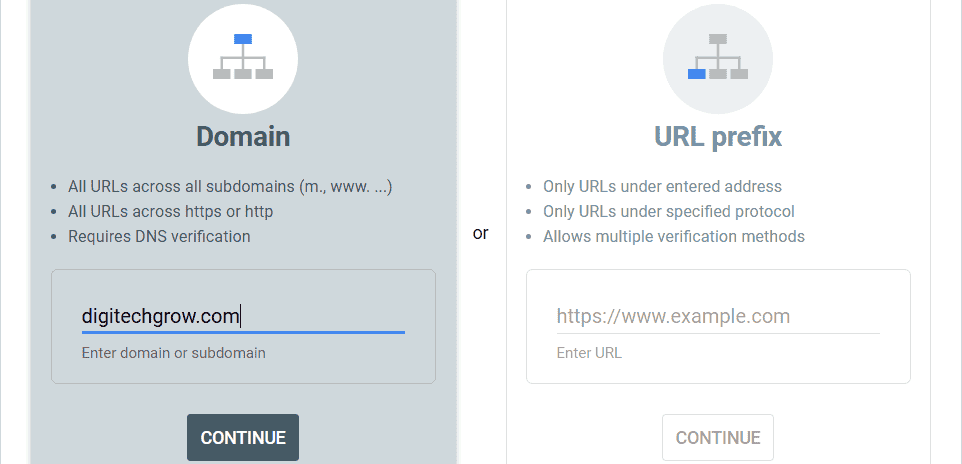
Domain Property - Adding Domain Property in Google Search Console then It Covers reporting of all URLs variations across your entire domain (including subdomains and protocols). Example: Adding digitechgrow.com will include:
https://digitechgrow.com
http://digitechgrow.com
https://www.digitechgrow.com
https://blog.digitechgrow.com
So no matter how users land on your website, Google Search Console will track everything under one single property, making reporting accurate and unified.
URL Prefix Property - The URL Prefix Property is useful if you want to track a specific version of your website. Here, you must enter the exact URL — including https or http, www or non-www
URL Prefix covers only the exact URL you enter. For example, if you add: https://digitechgrow.com/
Google will NOT track:
http://digitechgrow.com/

https://www.digitechgrow.com/

https://blog.digitechgrow.com/

any other subdomain
Click on the Domain option. Now enter your domain name without http / https / www. Example: digitechgrow.com
Then click Continue. Google Search Console will now show you the verification method for Domain Property.
After adding your domain, Google needs to confirm that you are the real owner of the website. Follow the steps given below to verify your domain ownership through a DNS TXT record.
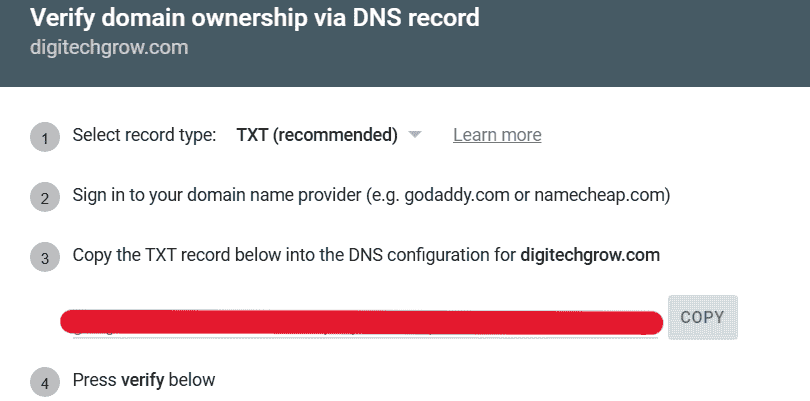
Step 1 - Select Record type - TXT. Google automatically selects TXT as the recommended verification method. Google will show a TXT record like this: google-site-verification=XXXXXXXXXXXXXXX. Copy the TXT Record Provided by Google
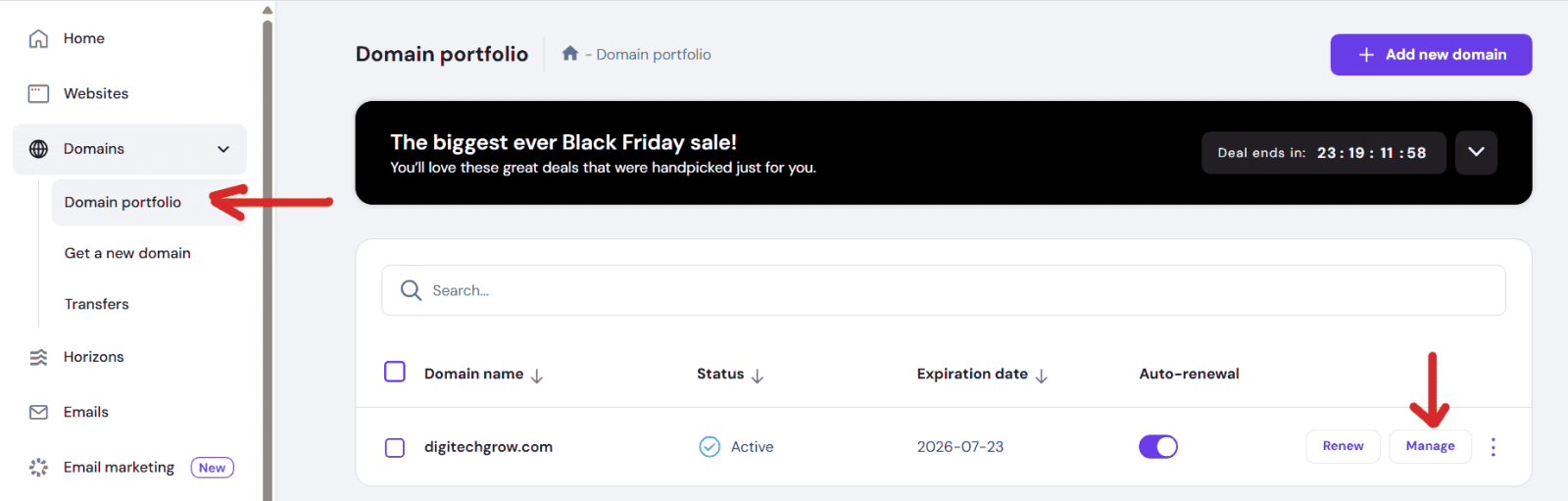
Step 2 - Sign in to Your Domain Provider where you purchased your domain. In this blog, I will explain how to add a TXT record in Hostinger.
After logging in to Hostinger (hPanel) look at the left sidebar and click on Domains.
Step 3 - Under the Domains menu, click on Domain portfolio. Here you will see a list of all domains you have purchased in Hostinger. Find the domain you want to verify (example: digitechgrow.com). Next to the domain name, click the Manage button.
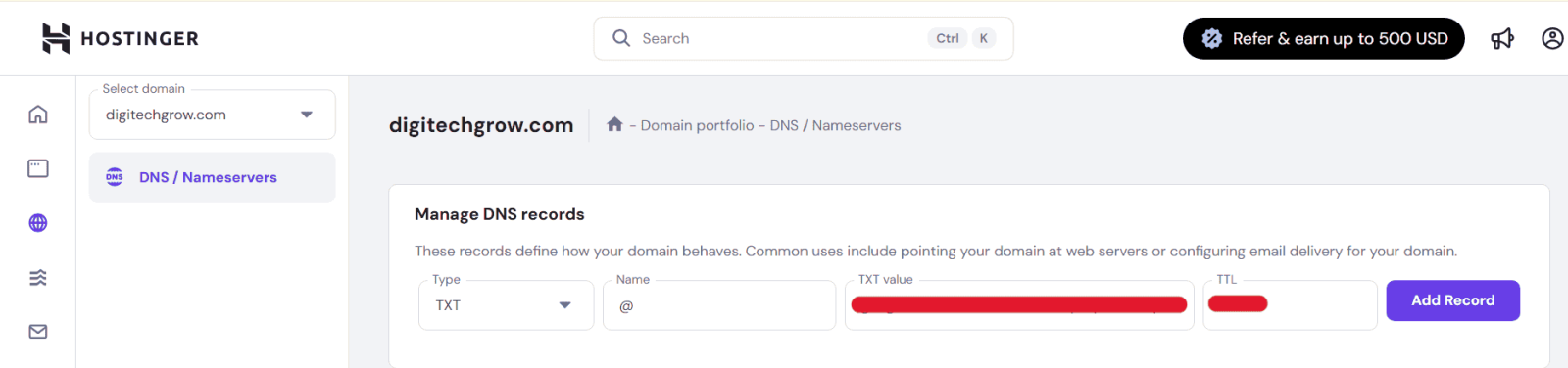
Step 4 - You will be taken to the domain management page. On the left side, click on DNS / Nameservers. This is where you can edit DNS settings for your domain.
Scroll down to the Manage DNS Records section.
Now follow these steps:
Record Type: Select TXT from the dropdown.
Name: Leave it as @ (this represents the root domain).
TXT Value: Paste the verification code you copied from Google Search Console.
TTL: Keep the default value (Hostinger usually sets 14400).
Once the TXT record has been added. Go back to the Google Search Console verification page. Click on the Verify button.
If the DNS record has propagated successfully, you will see a green confirmation message saying: Ownership Verified
This means your domain has been successfully verified using the Domain name provider method.
Google will also show a reminder: Do not remove the DNS TXT record, otherwise verification may fail in the future.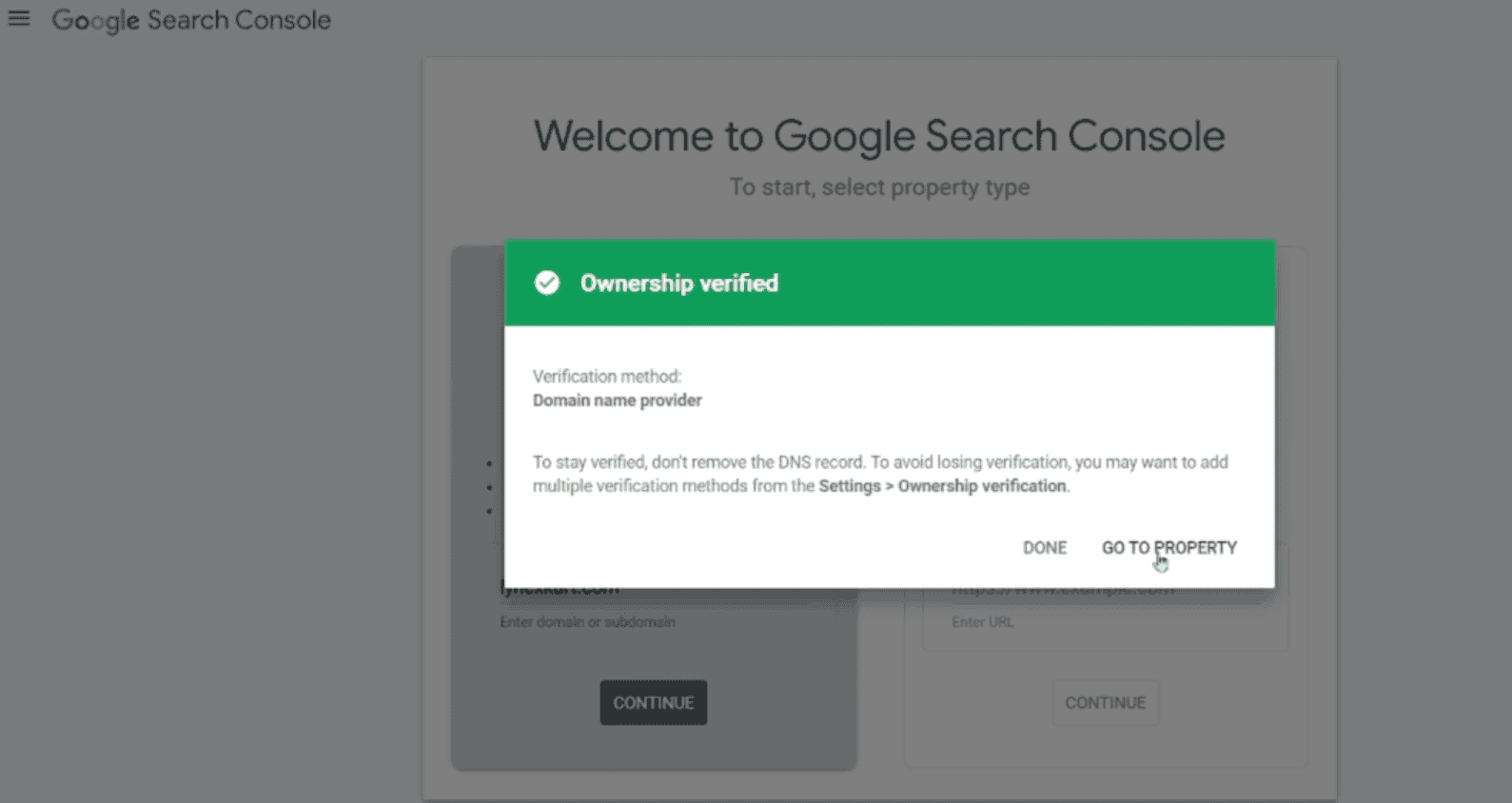
You may add multiple verification methods later from Settings → Ownership verification, but it is optional.
Finally, click on Go to Property to open your Google Search Console dashboard.
This completes your setup process — your site is now ready to be tracked and monitored inside Google Search Console.
Everything you need to know about Google Tag Manager, from basics to advanced implementation
Domain verification via DNS TXT record may take a few minutes to 24 hours, depending on your domain provider. If Google doesn’t detect the record immediately, wait and try again later.
No. Once the domain is verified, you don’t have to verify it again unless you remove the TXT record from your DNS settings. Keep the DNS record active to maintain ownership.
Domain Property tracks all versions of your website (HTTP, HTTPS, www, non-www, subdomains). URL Prefix Property tracks only the specific URL you entered. For complete website tracking, Domain Property is recommended.
After verification, Google may need 24–48 hours to start collecting and processing data. If the site is new, Google may take additional time to crawl and index your pages.
Yes. Google Search Console allows you to add and manage multiple domains or URLs in one account. You can track all your websites in the same dashboard.

Grow your business with best performance marketing strategy
© 2024 DigiTechGrow. Developed by DigiTechGrow.
